
How to Transfer Stocks From Tiger Brokers to Bitget rToken
How to Transfer Stocks From Tiger Brokers to Bitget rToken
[Estimated Reading Time: 5 minutes]
Bitget rToken now supports direct transfers of US stocks and ETFs from external brokerage accounts to Bitget, without requiring you to sell your holdings first. Once the stocks are successfully transferred, they will automatically be converted into the corresponding amount of rToken and credited to your Bitget Spot Account.
To transfer your stock holdings from Tiger Brokers to Bitget rToken, simply complete the following two steps:
1. Submit a stock transfer-in request on Bitget
2. Submit a stock transfer-out request with Tiger Brokers
Follow the step-by-step guide below to complete your transfer.
1. Submit a Stock Transfer-In Request on Bitget
Step 1: Access the Stock Transfer page on Bitget
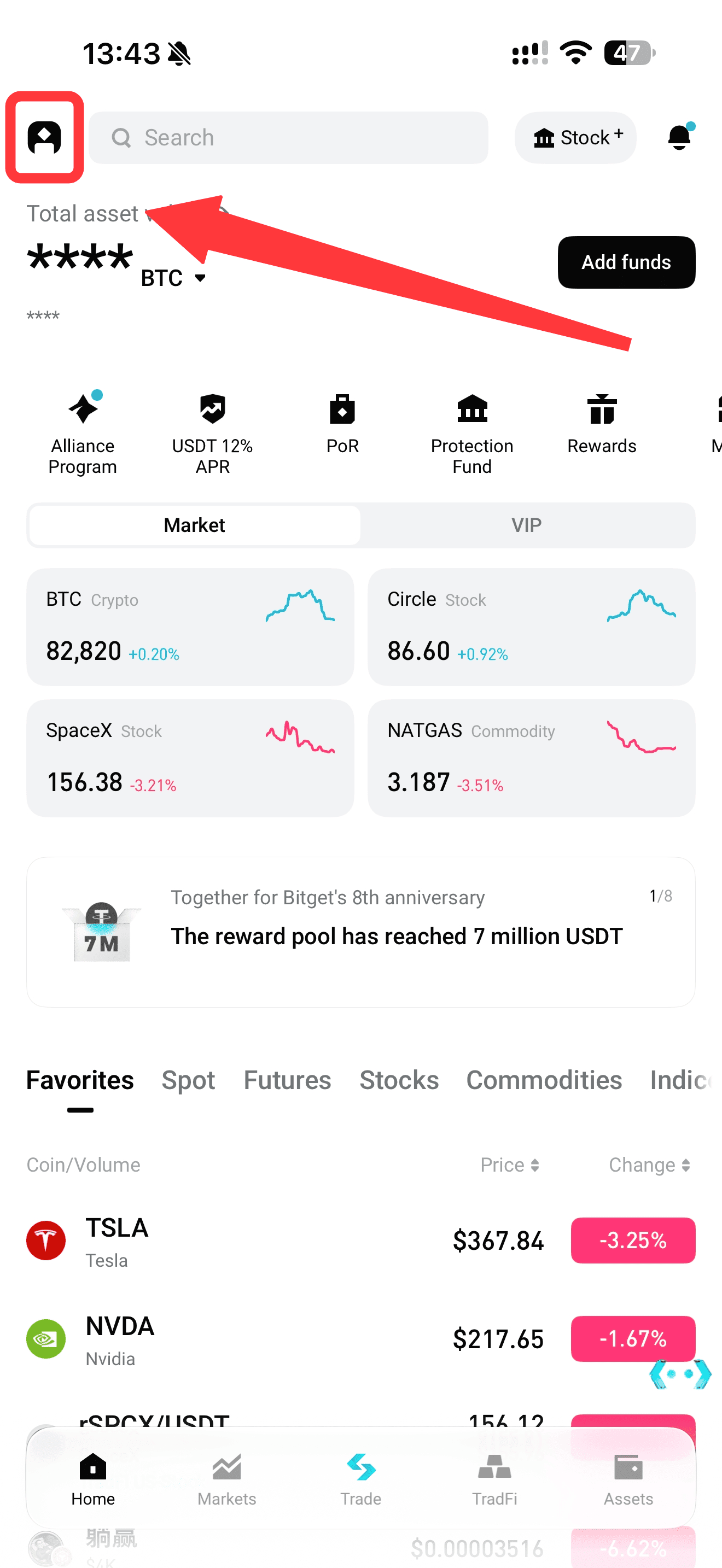
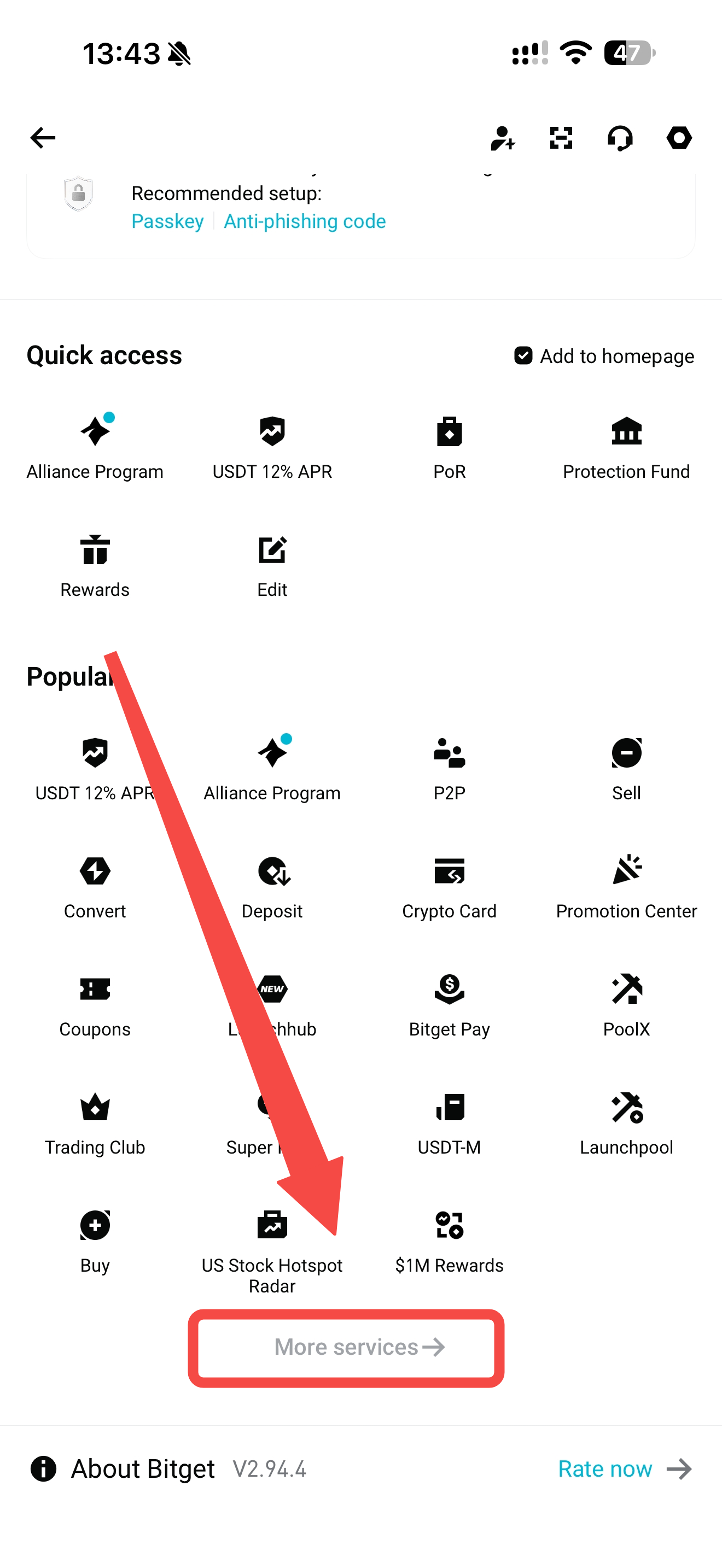
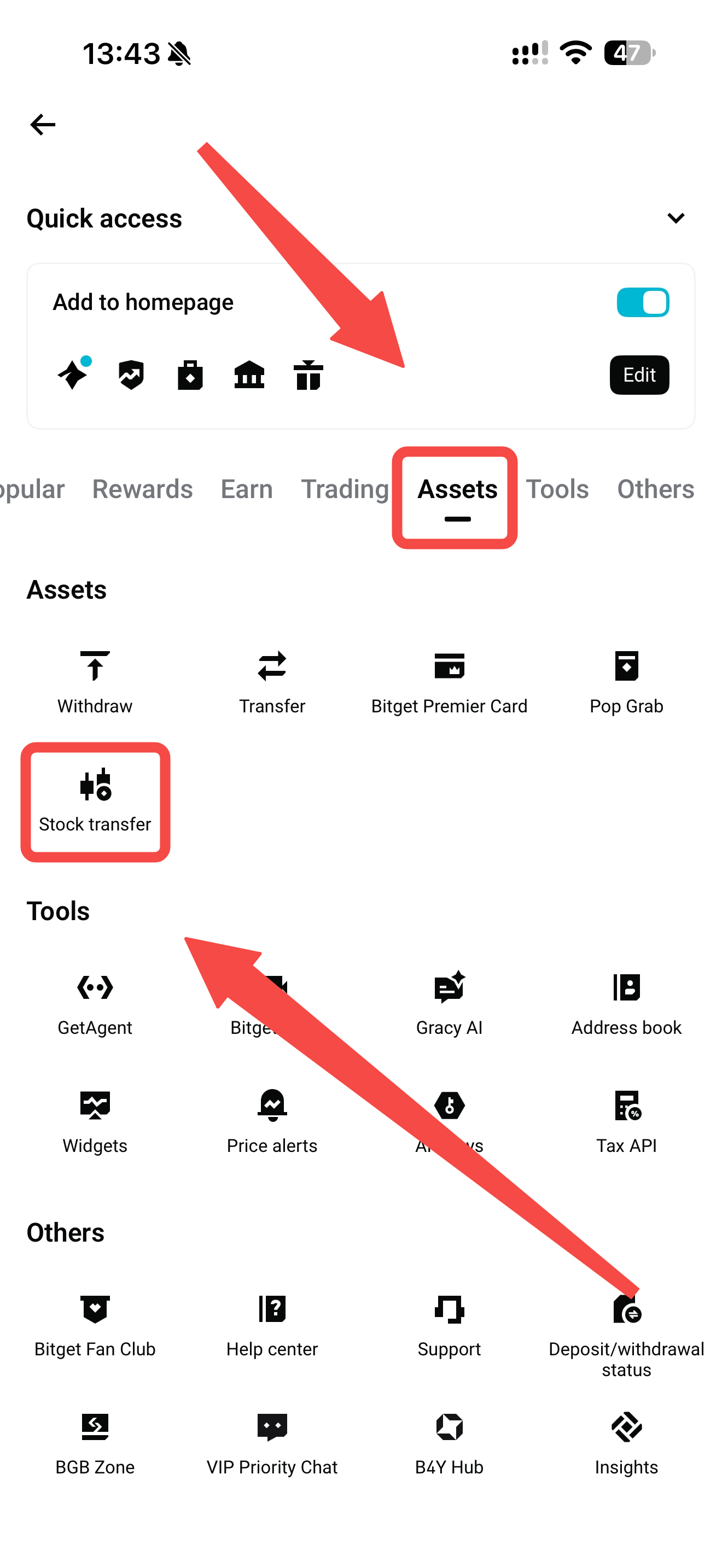
Open the Bitget App and tap the profile icon in the top-left corner of the home screen. Scroll down and select More Services. Under the Assets category, find and tap Stock Transfer to access the transfer page.
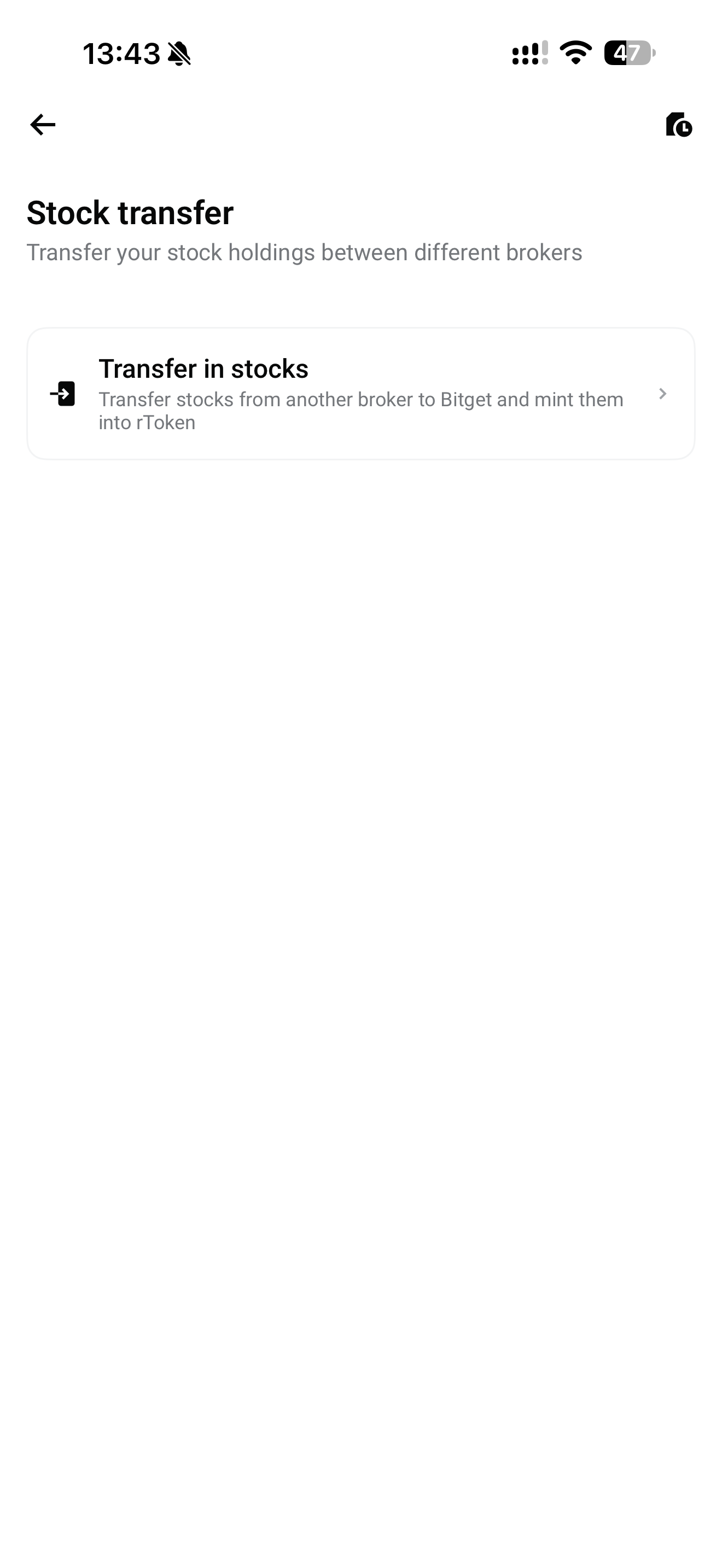
Select Transfer In Stocks to begin your transfer request.
|
Tap the Profile Icon
|
Scroll Down to More Services
|
Assets → Stock Transfer
|
 |
 |
 |
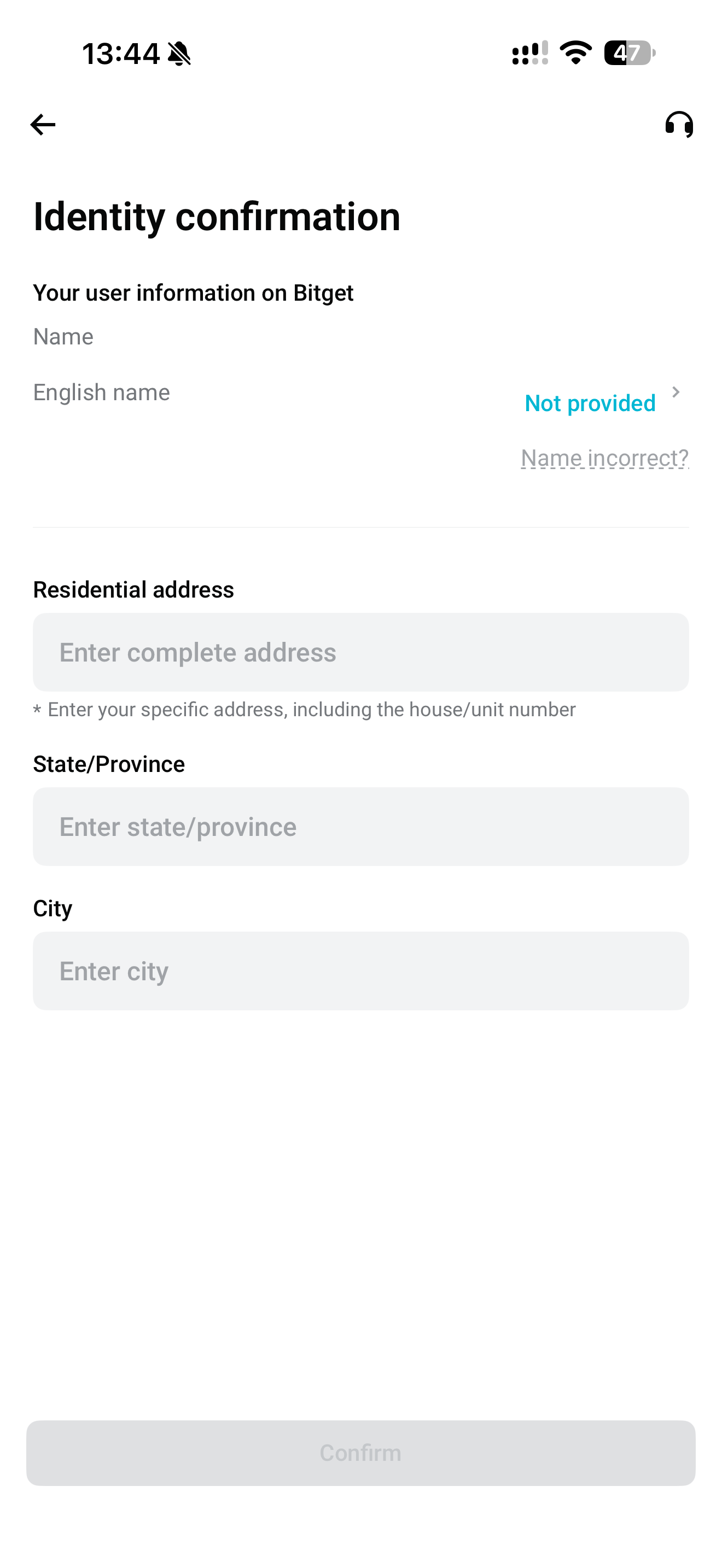
Step 2: Select your current Broker
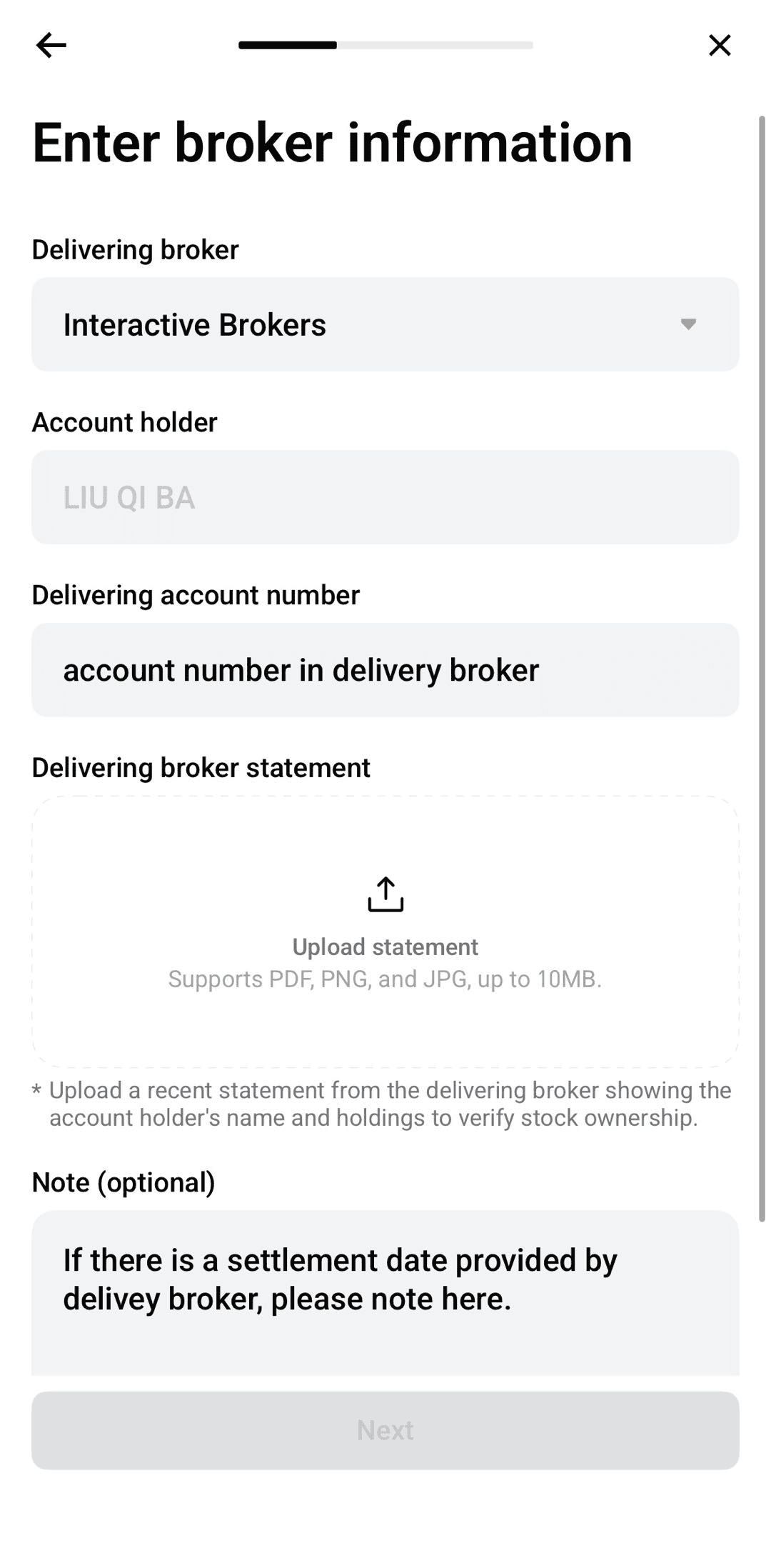
Select Tiger Brokers from the list of brokers and enter the following information as prompted:
-
Transferring Broker: Tiger Brokers
-
Brokerage Account Number: Your Tiger Brokers account number
-
Account Holder Name: Must match the name used for your Bitget identity verification (KYC)
-
Proof of Account Ownership: Upload a Tiger Brokers account statement or proof of holdings issued within the last 3 months
Please ensure that your account details match the supporting documents to avoid delays in the transfer review process.
|
Access the Stock Transfer Page
|
Enter Personal Information
|
Enter Account Information
|
 |
 |
 |
Step 3: Enter the Stock Transfer details
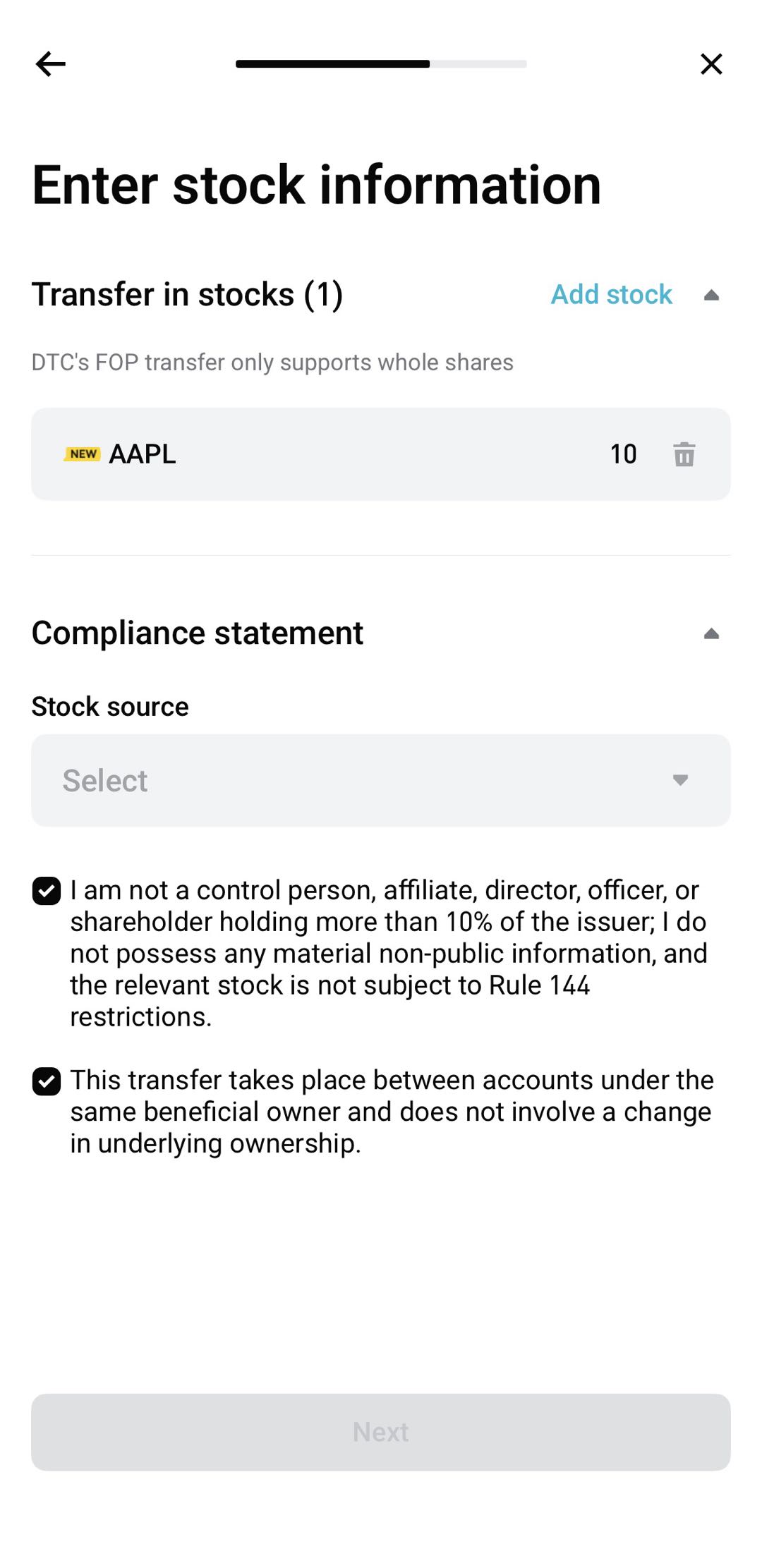
Select the US stocks or ETFs you wish to transfer to Bitget and provide the following information:
-
Stock Symbol (Ticker)
-
Number of Shares to Transfer
-
Any Other Information Required on the Page
Please ensure that the stock symbols and share quantities match your actual holdings in your Tiger Brokers account.
Note: Bitget only supports transfers of eligible whole shares. Fractional shares (less than one share) and cash transfers are currently not supported. Please refer to the Bitget Stock Transfer page for the latest list of supported stocks and ETFs.
Step 4: Review and submit your Transfer-In Request
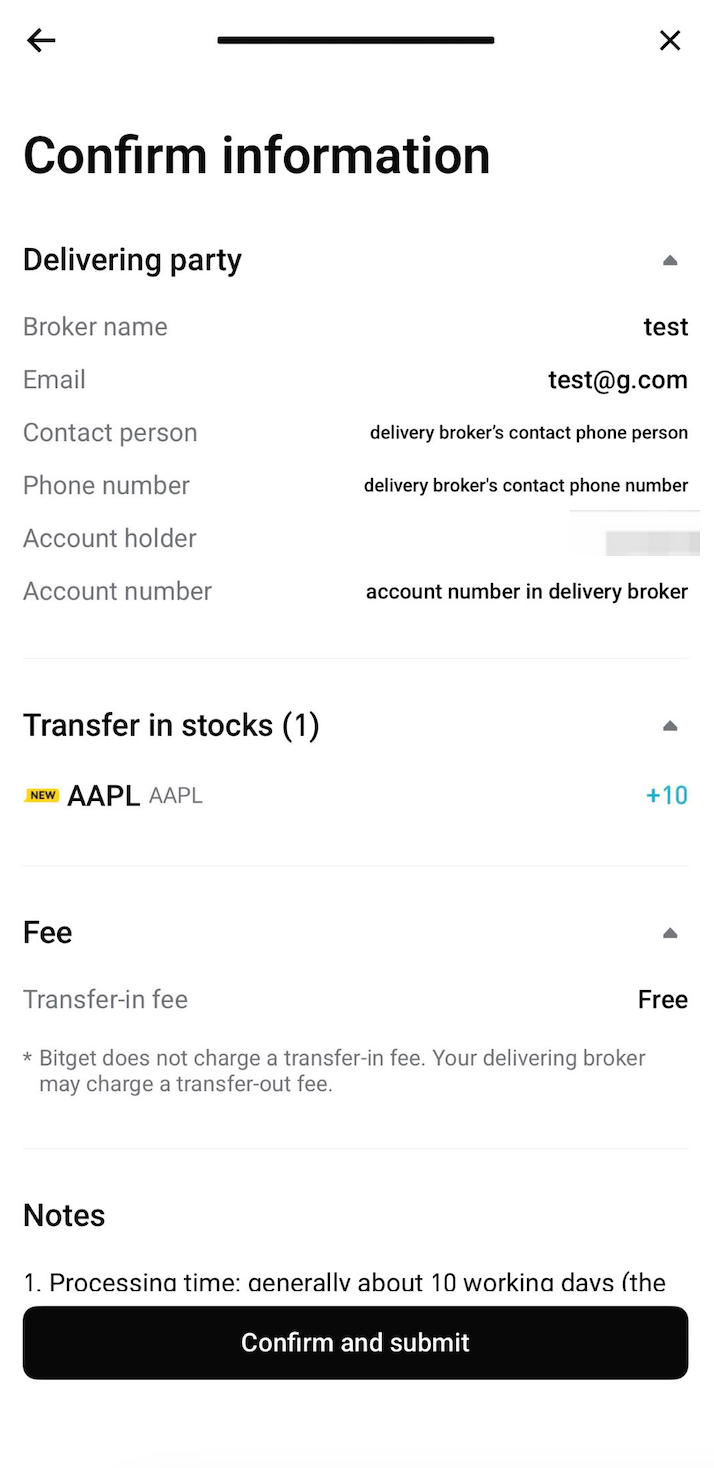
Review the transferring broker, account number, stock symbols, share quantities, and other relevant details.
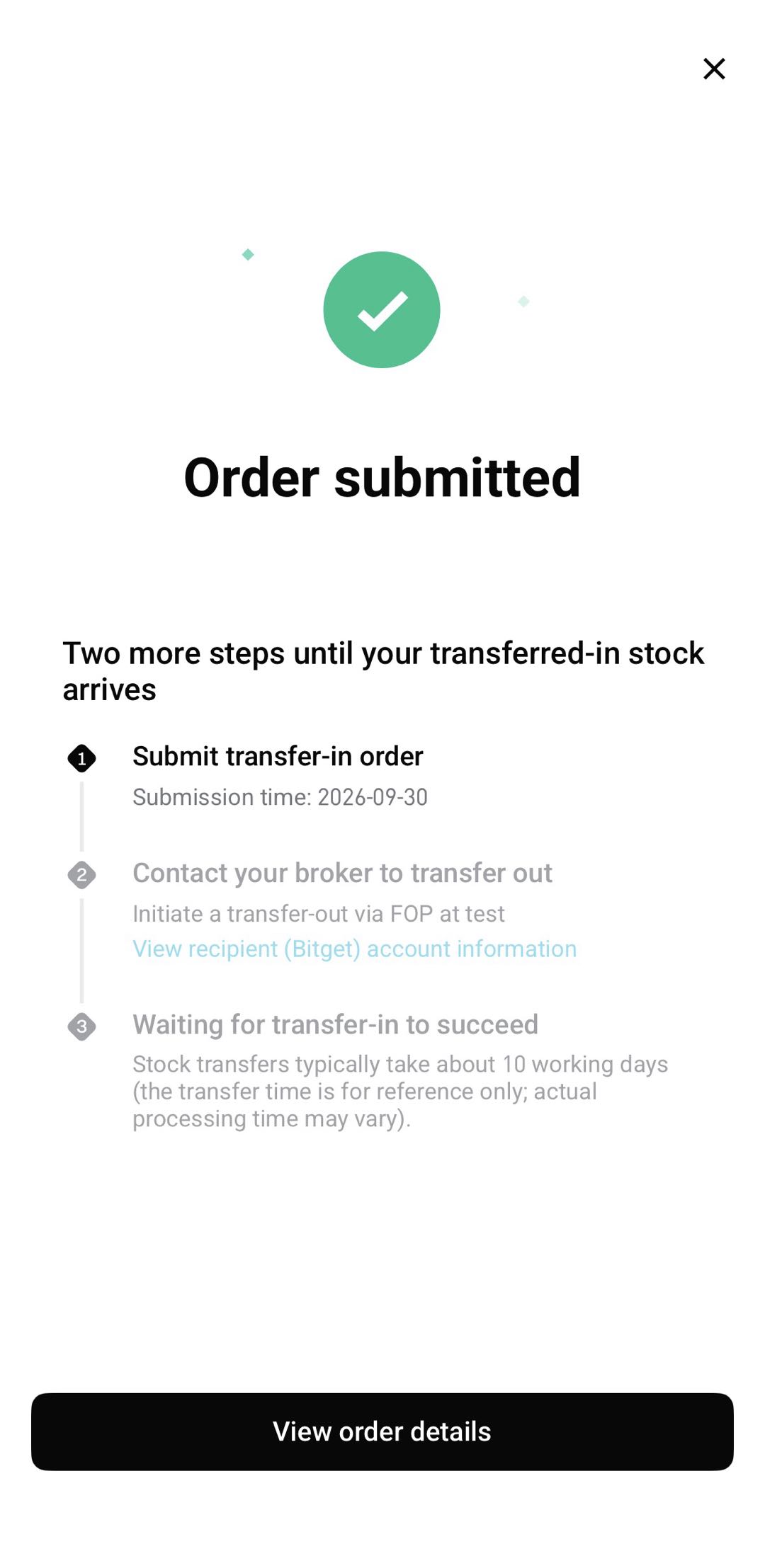
Once you have verified that all information is correct, tap Confirm and Submit to complete your transfer-in request on Bitget.
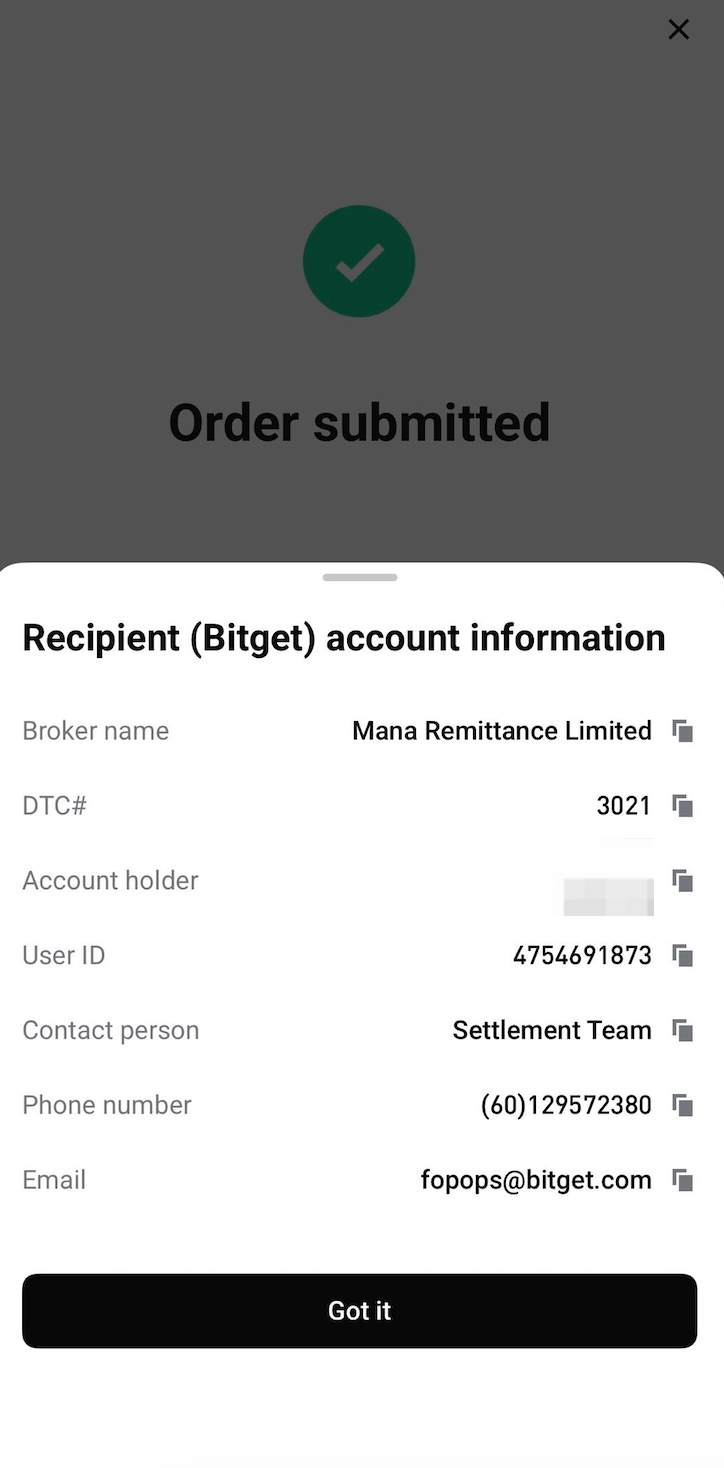
If Tiger Brokers requires details of the receiving broker, tap View Receiving Account Information to access Bitget's receiving brokerage account details.
|
Confirm Transfer
|
Submitted Successfully
|
Bitget Receiving Account Information
|
 |
 |
 |
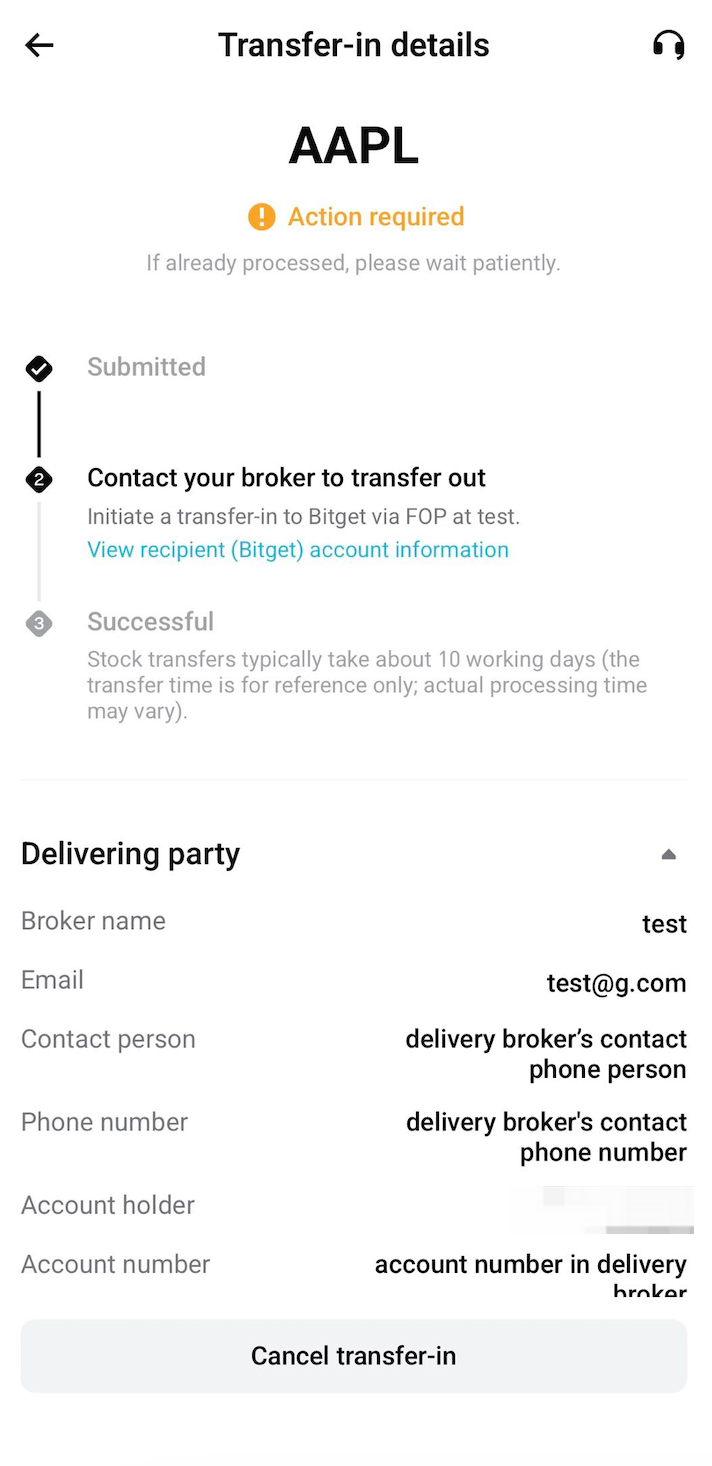
After submitting your request, you can track its progress by tapping Transfer History in the top-right corner of the Stock Transfer page.
If your request has not yet entered the processing stage, you may cancel it and submit a new one, provided the cancellation option is available. Please note that submitted transfer requests cannot be edited directly.
2. Submit a Stock Transfer-Out Request with Tiger Brokers
2.1 Verify your Tiger Brokers account type
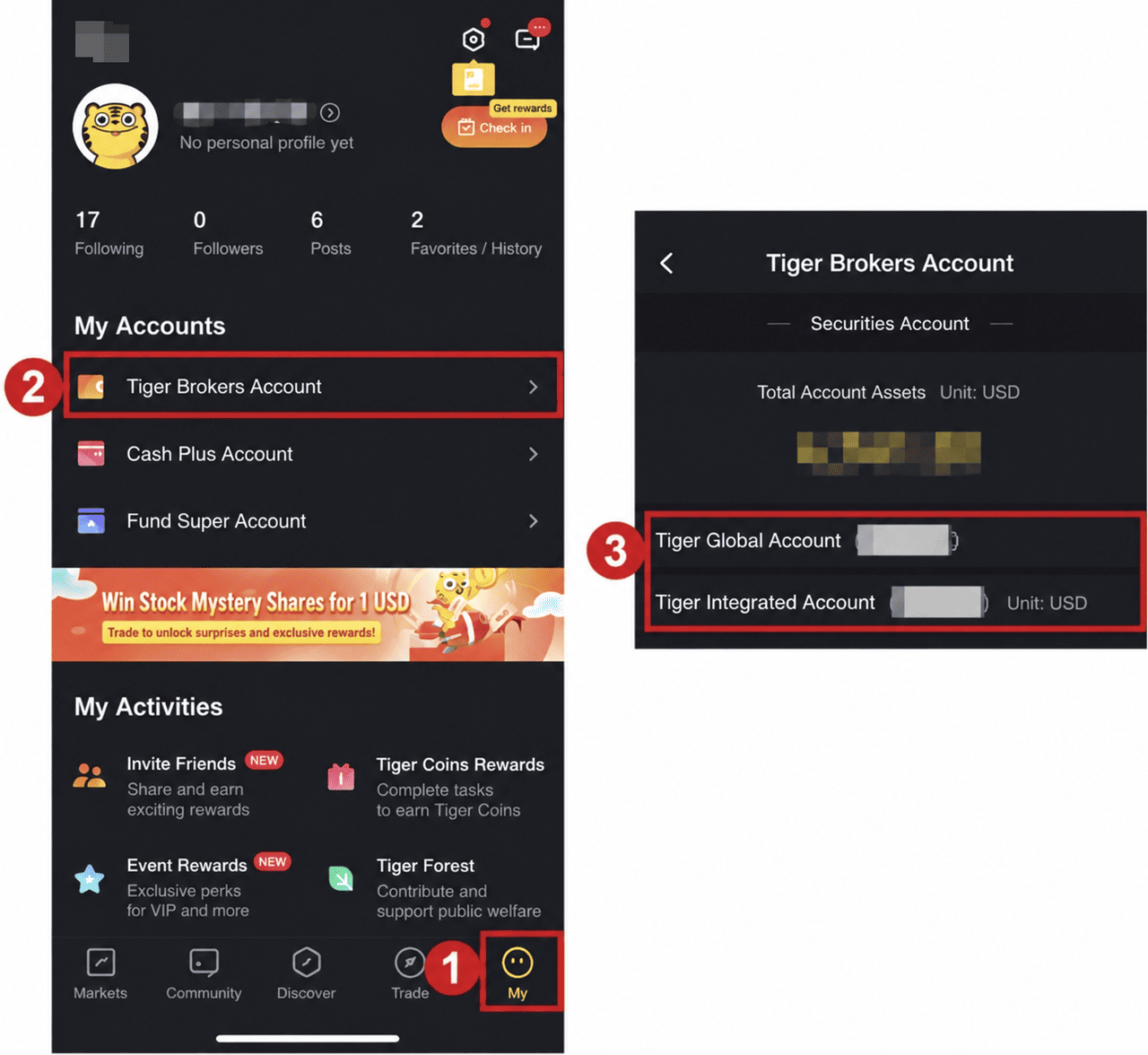
Tiger Brokers offers two account types: Global Accounts and Integrated Accounts. The stock transfer-out process may vary depending on your account type.
First, log in to the Tiger Brokers App and navigate to: Me → Tiger Account
Check the account type holding your stocks, then follow the corresponding instructions below.
2.2 Transfer stocks from a Tiger Brokers Global Account
If your Tiger Brokers Global Account supports stock transfers through Interactive Brokers (IB), you can follow the steps below.
Step 1: Log In to the Interactive Brokers website
1. Visit the official Interactive Brokers website
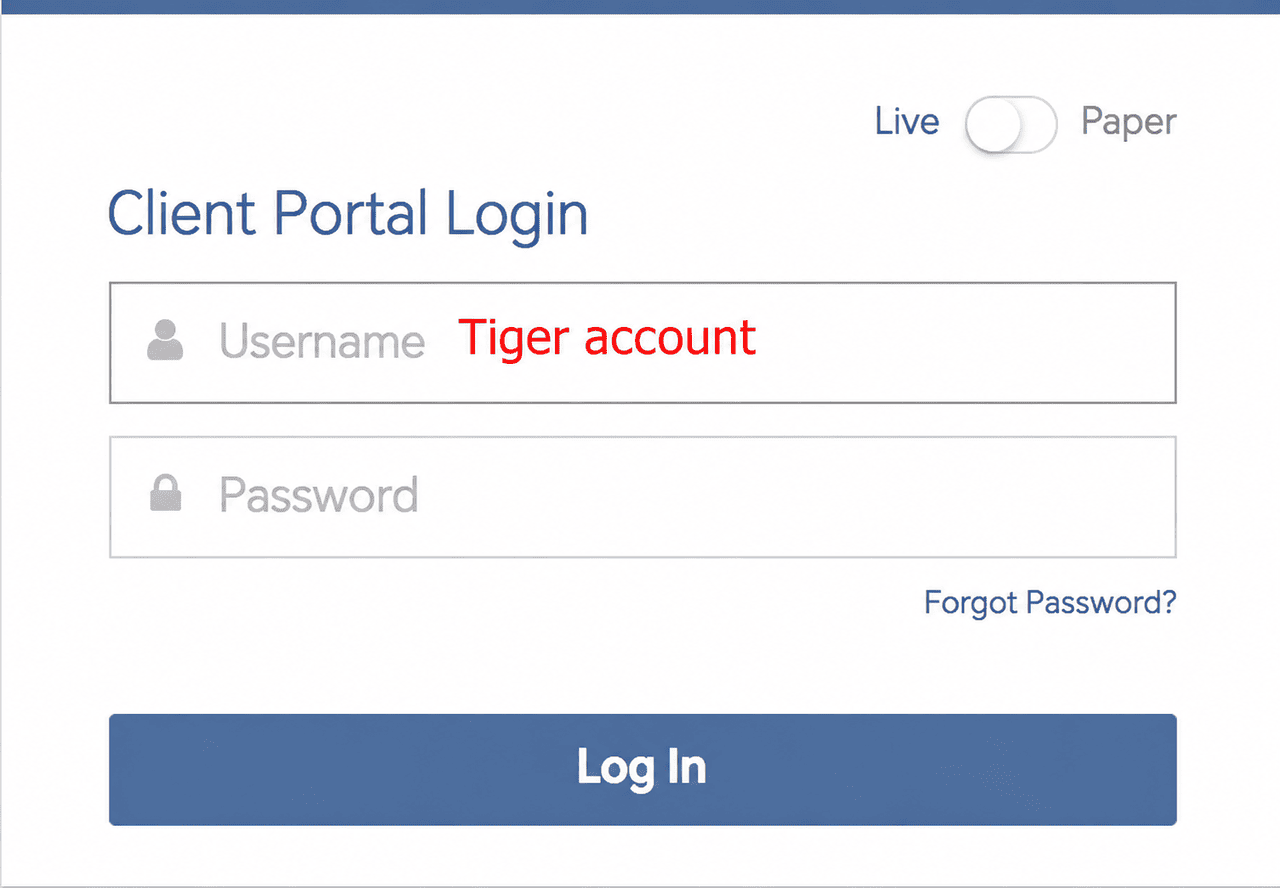
2. Open the Tiger Brokers App and navigate to Me → Tiger Account to view your Global Account details. For some Global Accounts, you may be able to use your Tiger Brokers account number as your IB login username.
3. If you have not set up a password or are unable to log in, please contact Tiger Brokers or IB customer support to confirm your login credentials and account access permissions.
Step 2: Select the Stock Transfer-Out Method
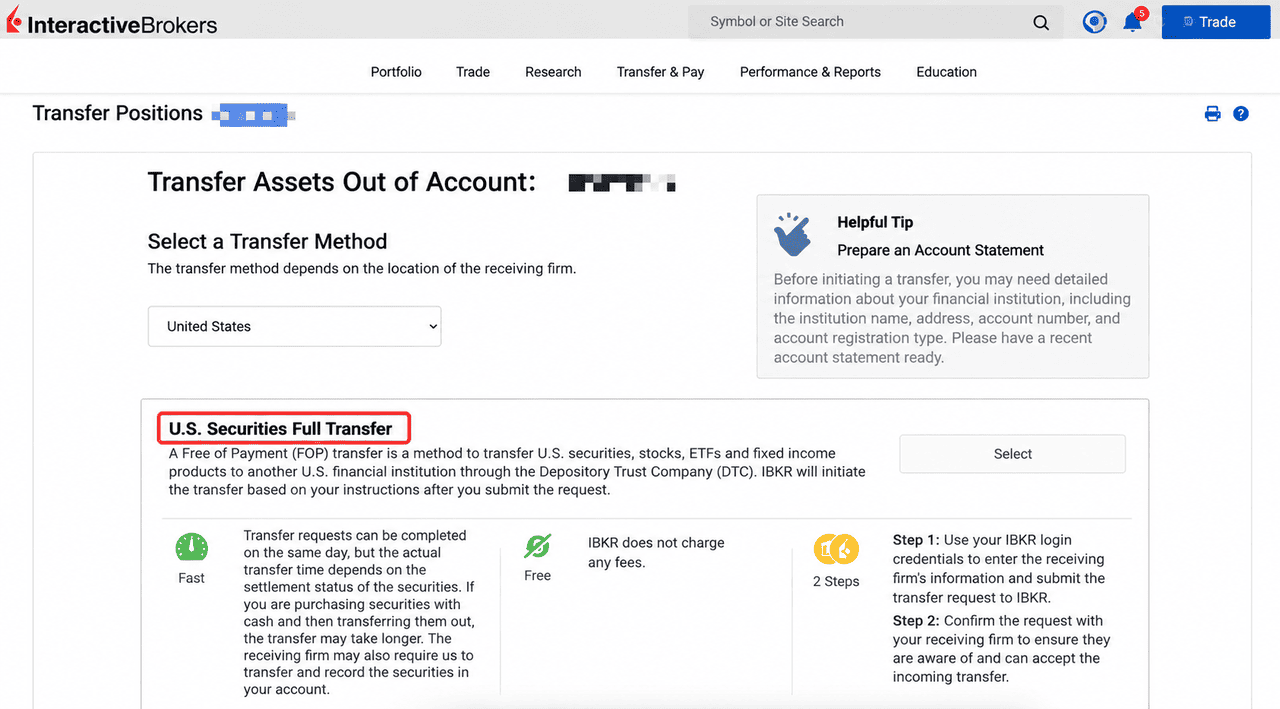
1. After successfully logging in to the IB website, navigate to: Transfer & Pay → Transfer Positions → Outgoing
2. Select the following options:
-
Transfer Region: United States
-
Transfer Method: US Securities Transfer (FOP)
3. FOP (Free of Payment) is a securities transfer method that allows you to transfer your stock holdings to another brokerage without selling them first.
Step 3: Enter Bitget's Receiving Broker information
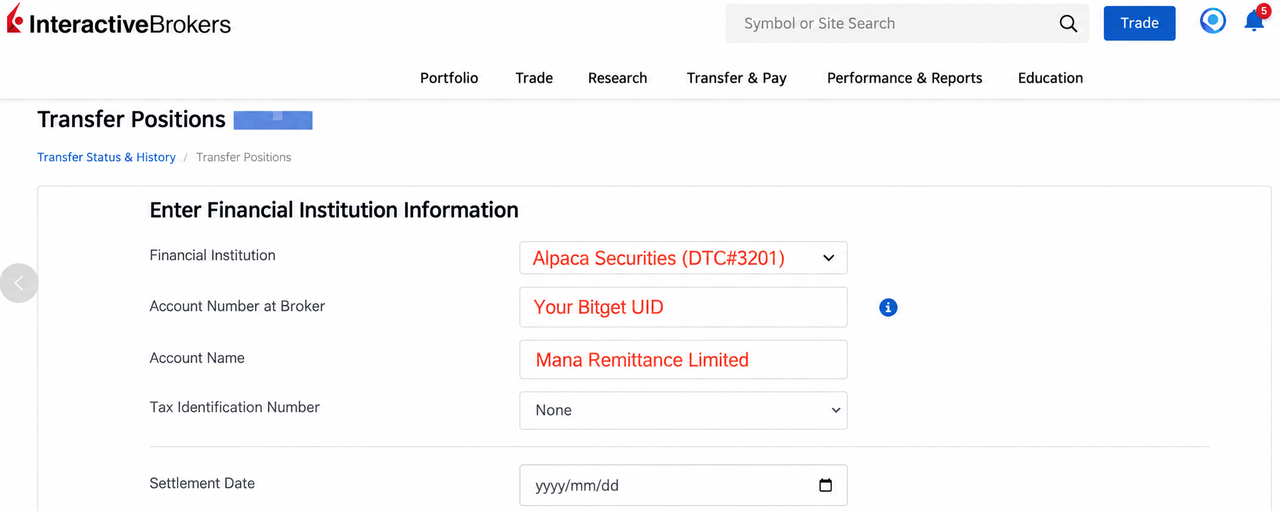
1. Enter the receiving broker details as provided on the Bitget Stock Transfer page.
2. Please refer to the following information:
|
Field
|
Information to Enter
|
|
Financial Institution / Clearing Broker
|
Alpaca Securities
|
|
DTC Number
|
3021
|
|
Brokerage Account Number
|
Your Bitget UID
|
|
Brokerage Account Name
|
Mana Remittance Limited
|
|
Account Holder Name
|
Your KYC-verified name on Bitget
|
|
Tax Identification Number (TIN)
|
None (if applicable)
|
|
Settlement Date
|
Your preferred transfer settlement date (please ensure your assets have settled by this date)
|
|
Contact Person
|
Settlement Department
|
|
Contact Number
|
(60) 129572380
|
|
Email Address
|
Important Note: The information above is for reference only. When transferring stocks, please refer to the latest details displayed under View Receiving Account Information in the Bitget App.
Step 4: Select the Stocks to transfer out
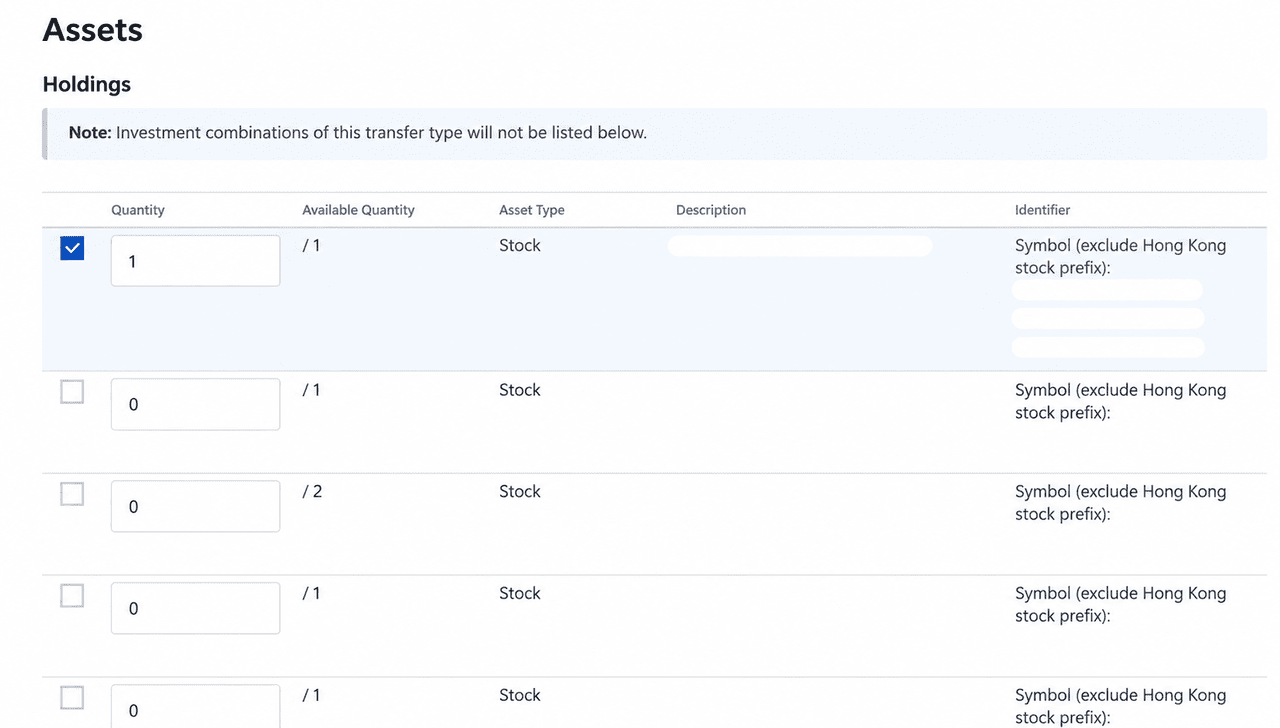
1. On the stock selection page, select the US stocks or ETFs you wish to transfer to Bitget and enter the number of shares to transfer.
2. Please ensure that the stock symbols and share quantities match the details provided in your transfer-in request on Bitget.
Step 5: Review and confirm the transfer details
1. The system will display the details of your FOP transfer, including:
-
Transfer Reference Number
-
Expected Settlement Date
-
Stock Symbols and Share Quantities
-
Receiving Broker and Account Information
2. Please carefully review all the details and ensure everything is correct before proceeding.
Step 6: Complete identity verification and submit your request
1. Follow the instructions on the IB website to complete the required identity verification and confirm your transfer request.
2. Once your request has been successfully submitted, please save the transfer confirmation or reference number for future tracking and inquiries.
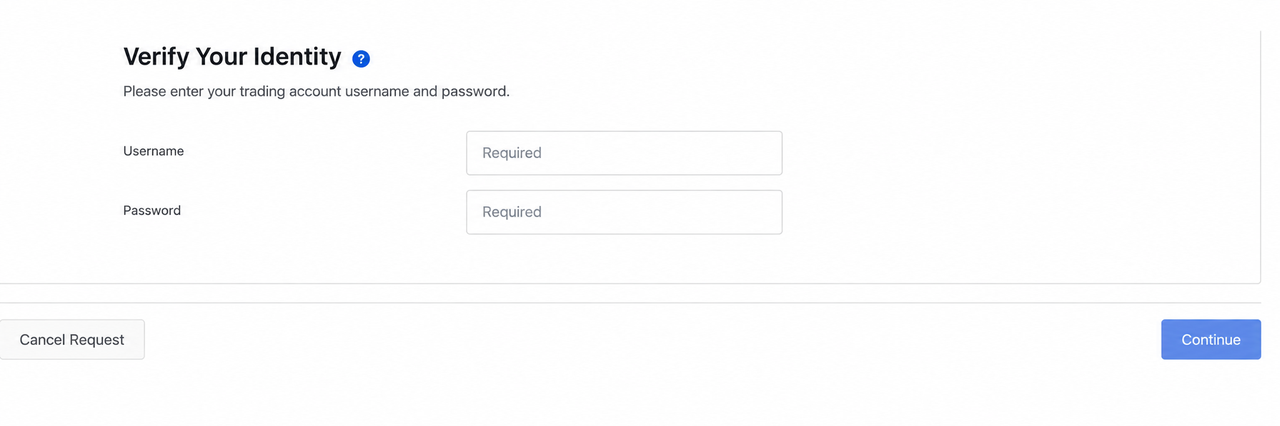
2.3 Transfer stocks from a Tiger Brokers Integrated Account
If you have a Tiger Brokers Integrated Account, please contact Tiger Brokers customer support to request a stock transfer to Bitget after successfully submitting your transfer-in request to Bitget.
Please follow the specific requirements and instructions provided by Tiger Brokers.
3. Automatic conversion to rToken after stock transfer
Once you have submitted your transfer-in request to Bitget and your transfer-out request with Tiger Brokers, both parties will coordinate to complete the stock transfer and settlement process.
After the eligible stocks are successfully transferred to Bitget's designated receiving account, the system will automatically mint the corresponding rToken through the In-Kind Tokenization Network (ITN).
-
No Need to Sell Your Stocks: Transfer your eligible stock holdings directly without selling them first.
-
Conversion Based on Actual Shares Received: Once the stocks arrive, they will automatically be converted into the corresponding number of rToken.
-
No Manual Conversion Required: Your rToken will be automatically credited to your Bitget Spot Account.
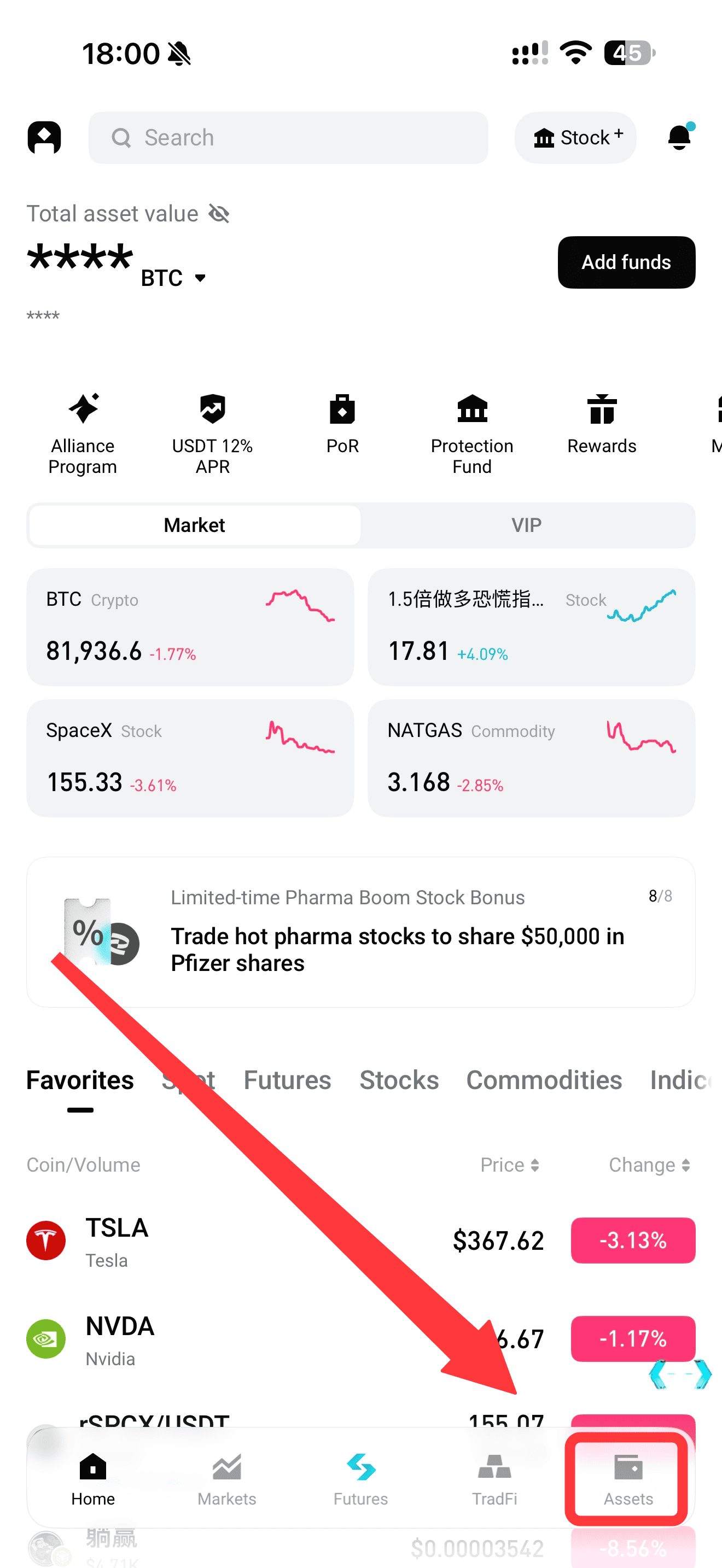
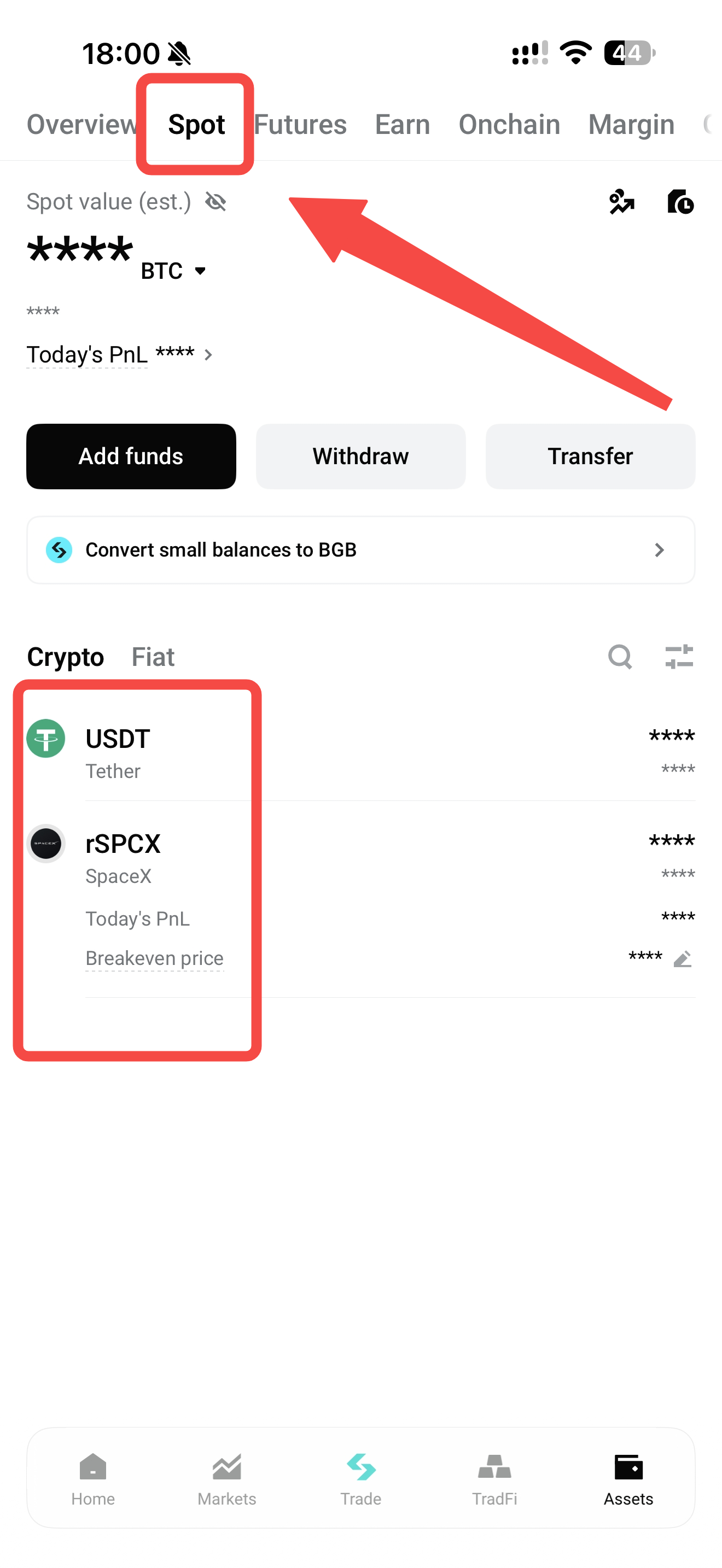
Once the transfer is complete, you can view your rToken holdings by tapping Assets → Spot in the bottom-right corner of the Bitget App's home screen. You can then trade your rToken and access other supported features on Bitget.
|
Tap Assets in the Bottom-Right Corner
|
Select Spot from the Top Navigation Bar
|
 |
 |
4. Important Notes About Stock Transfers
1. How long does a stock transfer take?
Bitget rToken stock transfers typically take approximately 5–10 business days. Actual processing times may vary depending on the transferring broker's processing speed, stock settlement status, and other review procedures.
2. Are there any fees for transferring stocks?
Bitget does not charge any fees for incoming stock transfers. However, Tiger Brokers may charge transfer-out fees according to its fee schedule. We recommend confirming any applicable fees with Tiger Brokers before submitting your request.
3. Can I transfer any stock to Bitget?
Bitget rToken currently supports transfers of over 3,000 eligible US stocks and ETFs. Fractional shares, cash, and stocks that do not meet the platform's requirements are not supported.
Please refer to the Bitget Stock Transfer page for the latest list of supported stocks and ETFs.
4. What should I know before transferring my stocks?
-
The account holder name on your Tiger Brokers account must match your KYC-verified name on Bitget.
-
Ensure that your stocks have fully settled and are not subject to any transfer restrictions.
-
Check for outstanding debts, negative balances, or other account issues that could cause your transfer to fail.
-
Your stocks may be temporarily unavailable for trading while the transfer is being processed.
-
Do not use receiving account details from outdated transfer guides when submitting a new request.
5. How can I track my stock transfer status?
Open the Bitget App, navigate to the Stock Transfer page, and tap Transfer History in the top-right corner to view your transfer request and track its progress.
If your transfer is taking longer than expected, please contact Bitget or Tiger Brokers customer support for assistance.
Disclaimer: The steps and screenshots in this guide are for reference only. The actual interface, available features, and required information may vary depending on the app version, account type, and region. Please refer to the latest official information and on-screen instructions provided by Bitget and Tiger Brokers.
*This announcement is time-sensitive. Please note the date of publication. The platform assumes no responsibility for any direct or indirect losses arising from changing circumstances or outdated content.